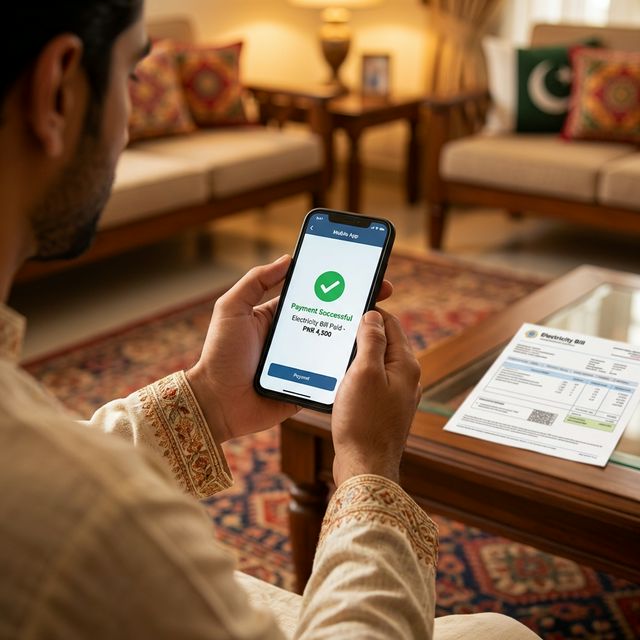
Look, if there is one thing we all hate doing in Gujranwala on a hot summer afternoon, it’s standing in a massive queue outside the National Bank just to pay our electricity bill. I used to waste hours doing this every month until I realized in 2026, there is literally zero reason to ever visit a bank branch for a utility bill.
Whether you use JazzCash, EasyPaisa, or a standard mobile banking app (like HBL, Meezan, or MCB), paying your GEPCO bill online takes exactly 45 seconds. Here is my personal, step-by-step guide on how I do it every month without leaving my couch.
Method 1: The Easiest Way (Using JazzCash or EasyPaisa)
If you don't have a traditional bank account, mobile wallets are your best friend. The process is almost identical for both JazzCash and EasyPaisa:
- Open the App: Log into your JazzCash or EasyPaisa mobile app.
- Find Utility Bills: Tap on the "Bill Payment" or "Utility Bills" icon on the home screen.
- Select Electricity: Choose "Electricity" from the list of utilities.
- Choose GEPCO: Scroll through the list of distribution companies until you find GEPCO.
- Enter Your Reference Number: This is the crucial part. You need your 14-digit Reference Number. (If you don't have it, you can quickly find it using the GEPCO Bill Checker on our homepage). Also, if you just got a new meter, check out how to download your Demand Notice before your first bill arrives.
- Confirm and Pay: The app will fetch your current bill amount. Verify the amount, enter your PIN, and hit pay. Done.
Method 2: Using Your Mobile Banking App (HBL, Meezan, MCB, etc.)
If you have an account with Meezan Bank, HBL, Allied Bank, or almost any other major bank in Pakistan, paying your GEPCO bill is built right into their app. I personally use Meezan, but the steps are essentially the same everywhere:
- Log into your banking app and look for the "Payments" or "Bill Payments" tab.
- Tap on "Add New Payee" or "Add Biller".
- Select "Utility" and then select "GEPCO".
- Enter your 14-digit Reference Number.
- The bank will instantly display your bill details. Authenticate with your fingerprint or OTP, and the bill is paid instantly.
Pro-Tip: Save Your Biller!
Once you pay your bill through your banking app for the first time, save it as a registered payee. Next month, you won't even need to type the reference number. The app will just notify you when the new GEPCO bill arrives, and you can pay it with one tap.
How Do I Know if My Bill is Actually Paid?
This is a common fear. "What if the money leaves my account but GEPCO cuts my electricity?" Don't worry. Online payments through these official channels are instant. If you want peace of mind, just copy your 14-digit Reference Number, go to our homepage, and check your duplicate bill. Near the bottom, you will see a "Payment Status" section that will update to show your recent transaction. If your bill amount seemed unexpectedly high this month, read our guide explaining exactly how GEPCO calculates unit prices, slabs, and FPA taxes.
Stop wasting your time in lines. Use your phone, pay the bill, and get back to your day!